
Hand Control for developers and AI agents.
Version 1.2.5 Claude, other agents, scripts and your own programs on the same PC can see whether Hand Control is running, read the hands it is following, and follow every gesture, click, key press and scroll. With your permission they can also turn control on or off, choose the 3D program profile, or take a camera snapshot. They cannot start any mouse or keyboard input: only your hands do that.
How an agent reaches Hand Control
- Your agent Claude or another MCP client Claude Code, Claude Desktop, or any client that runs a stdio server.
-
The connector
HandControlMCP.exeYour agent runs it as an MCP server over stdio. Installed next to the app; finds the port and the key by itself. -
The local API
127.0.0.1:47294The connector calls it over HTTP, signed with the key. This PC only; web pages are refused, even with the key. - The app Hand Control Answers only what you allowed, and nothing until you tick it in the Agents tab. Follows your hands, 21 points each.
The path ends at the app. An agent reads hands, gestures, clicks, key presses and scrolls and, if you allow it, turns control on or off, picks the 3D program or takes a snapshot. It cannot start any mouse or keyboard input: only your hands do that. Turning control off lets go of what your hands are holding; switching the program in the middle of a two-hand gesture lets go too, and the gesture then carries on with the new program’s buttons.
Your own scripts skip the connector and call 127.0.0.1:47294 directly: see the local API.
get_events, numbered here in the order they arrive.- You point
gesturepoint - You pinch thumb and index
snap_backpxonly if the pointer drifted as the fingers closed: it is put back before the press buttonLdownatpos[x, y]gestureleft downwhile you keep pinching (move to drag)- You let go
buttonLup gesturepointback to pointing
What an agent can and cannot do
An agent can
- See whether Hand Control is running and whether control is on
- Read the hands it is following (with Only me on, only yours): 21 points per hand, fingers up
- Wait for a gesture, or read the stream of gesture, click, key and scroll events
Only if the user ticked it
- Turn control on or off
- Switch the 3D program profile
- Take a camera snapshot
An agent can never
- Start any mouse or keyboard input (move, click, scroll or type)
- Connect from another computer
- Get your face signature or settings file from Hand Control (the API and its tools never return them)
All of this happens on your PC. The connector talks to Hand Control over 127.0.0.1 and nothing leaves the machine. Anything the agent then does with what it read, such as sending it to its own model, is up to that agent and its app.
Next: connect Claude in three steps, or use the local API from a script.
Get Hand Control
Install Hand Control, then turn on the agent API in the Agents tab as described in step 1.
Connect Claude in three steps
Step 1: Turn on the agent API
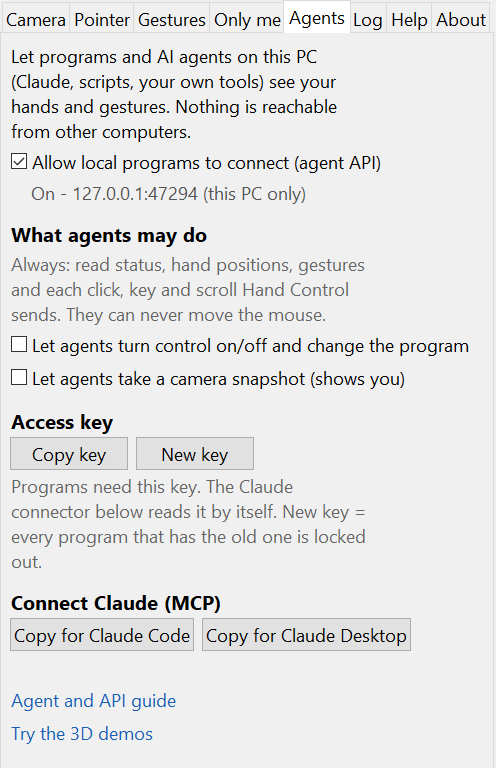
In Hand Control, open the Agents tab and tick Allow local programs to connect (agent API). Tick the two permission boxes only if you want an agent to be able to do those things.
Step 2: Connect your agent
Hand Control installs a connector, HandControlMCP.exe, next to the app. It speaks the Model Context Protocol, both the current revision (2026-07-28) and the older handshake-based revisions, so older and newer clients both work. It finds the port and the access key by itself.
The Agents tab has two buttons that copy the exact text for your install:
Claude Code
Copy for Claude Code, then paste it into a terminal. It looks like this:
claude mcp add --scope user --transport stdio hand-control -- "C:\Users\<you>\AppData\Local\Programs\Hand Control\HandControlMCP.exe"--scope user makes it available in every project. Check it with claude mcp list.
Claude Desktop
Copy for Claude Desktop. In Claude Desktop, open Settings > Developer > Edit Config, which opens %APPDATA%\Claude\claude_desktop_config.json. Merge the copied block into mcpServers:
{
  "mcpServers": {
    "hand-control": {
      "command": "C:\\Users\\<you>\\AppData\\Local\\Programs\\Hand Control\\HandControlMCP.exe",
      "args": []
    }
  }
}
Quit Claude Desktop completely and start it again.
Any other MCP client
Run HandControlMCP.exe as a stdio server with no arguments. It reads api_port from %APPDATA%\Hand Control\settings.json when it starts, so restart your agent after changing the port; --port <n> (1024–65535) forces a port; any other value is ignored. --version prints the version. --selftest checks the exe and exits.
Without MCP
Scripts and your own programs can use the HTTP API directly; see the local API reference.
Step 3: Try it
Ask your agent, for example:
- “Is Hand Control on? Which program is it set up for?”
- “Wait until I make the rotate gesture, then tell me.”
- “Switch Hand Control to Fusion 360.” (needs the control permission)
- “Look through the Hand Control camera: is my hand in view?” (needs the camera permission)
Troubleshooting
| The agent says | Do this |
|---|---|
| “...agent API has never been turned on...” | Tick the box in step 1. That also creates the key. |
| “Hand Control is not running, or its agent API is off” | Start Hand Control. Check the Agents tab shows On. |
| “Could not verify that the program on Hand Control's port is Hand Control...” | Another program has the port, or the key file does not match the running app. Restart Hand Control. The key was not sent. |
| “Hand Control is busy (too many programs are asking at once)...” | More than 8 connections were open at once. Try again in a second. |
| “busy: at most 8 requests at once - retry shortly” | The agent sent more than 8 tool calls at once to the connector. Try again. |
| “...is off. The user can allow it in Hand Control > Agents...” | That action needs its tick box. |
| The tools do not appear in Claude Desktop | Restart it fully. Logs are in %APPDATA%\Claude\logs\mcp-server-hand-control.log. |
To shut every program out at once, untick the box in step 1. New key stops any program that kept a copy of the old key; a program that reads the key file each time, such as this connector, keeps working.
Two-hand gestures in 3D programs
Hand Control drives Windows with ordinary mouse input, so most desktop programs work with it: CAD, modelling tools, browsers and slide shows. You do not install a plug-in into the program. Programs that run as administrator need Hand Control to run as administrator too (see below), and games that read raw mouse input may ignore the pointer movement.
The one-hand gestures (point, pinch to click and right-click, V sign to scroll; or the finger-tap style) behave the same everywhere. The two-hand gestures (rotate, pan, zoom) send the view controls of the program you choose in Gestures > Two-hand gestures drive.
Supported 3D programs
| Profile | Two-hand rotate sends | Two-hand pan sends | Two-hand zoom sends | Source for the default bindings |
|---|---|---|---|---|
| SolidWorks | middle-drag | Ctrl + middle-drag | wheel | SOLIDWORKS Help: Middle Mouse Button Functions (middle = rotate, Ctrl + middle = pan, wheel = zoom) |
| Fusion 360 | Shift + middle-drag | middle-drag | wheel | Fusion Help: Fusion preferences reference (Fusion default: Shift + middle = orbit, middle = pan, wheel = zoom) |
| Blender | middle-drag | Shift + middle-drag | wheel | Blender manual, 3D Viewport navigation |
| Onshape | right-drag | middle-drag | wheel | Onshape Help: View navigation and the View Cube (default: right-drag = rotate, middle-drag = pan, wheel = zoom) |
| Hand Control demos / web 3D | middle-drag | Ctrl + middle-drag | wheel | The Hand Control demos |
The bindings were checked against the sources above on 26 Sep 2026 (Fusion 360 again on 28 Sep 2026). If you have changed a program’s mouse settings, pick the profile whose controls match yours.
How the two-hand gestures work
| Gesture | Hands | What Hand Control does |
|---|---|---|
| Rotate | Both hands pinch, then move both the same way | Holds the profile’s rotate button and keys, and moves the pointer with your hands. |
| Zoom | Both hands pinch, then pull apart or bring closer | Lets go of every held button and key, sends plain wheel notches (at most 3 per frame), then takes them again. |
| Pan | Both hands make fists, then move both the same way | Holds the profile’s pan button and keys, and moves the pointer. |
Safety behaviour, which is the same in every profile:
- Everything held is released when a hand leaves view, when the camera stalls, when the camera or Mirror changes, and when you are no longer recognised with Only me on.
- Switching the profile in the middle of a gesture releases everything and takes the new controls.
- If Windows refuses to release a button (it can when the program in front runs as administrator), Hand Control sends nothing else until that release goes through.
- Ctrl+Alt+H switches control on or off while the camera is running, whatever your hands are doing.
Programs that run as administrator
Windows does not let a normal program send input to a program running as administrator (User Interface Privilege Isolation). If Hand Control does nothing in one program, check whether that program was started “as administrator”. Either start it normally, or start Hand Control as administrator too.
Programs without a profile
Most 3D programs let you choose mouse controls. Pick the preset that matches one of the profiles above; the SolidWorks or Blender styles are the most common. The profile is saved in %APPDATA%\Hand Control\settings.json as app_profile.
Connecting other software
| You want to | Use |
|---|---|
| Let Claude or another AI agent see your gestures | Connect Claude (MCP connector) |
| React to gestures from your own script or app | the local API reference: /v1/events long-poll, /v1/hands landmarks |
| Switch the profile automatically when a program comes to the front | A small script that watches the foreground window and calls POST /v1/profile (needs the control permission) |
| Try it in a browser | Hand Control demos |
The local API
Hand Control can let other programs on the same PC see what it sees: whether it is running, the hands it is following (21 landmarks each), and every gesture and input event. With the user’s permission, a program can also turn control on or off, choose the 3D program profile, or take a camera snapshot.
The API cannot start any mouse or keyboard input: only the user’s hands do that. Turning control off, or switching the 3D program in the middle of a two-hand gesture, lets go of what the hands are holding (a program switch then takes the new program’s buttons for the same gesture).
If you are connecting an AI agent (Claude Code, Claude Desktop or any other MCP client), you do not need this page: use the MCP connector described in Connect Claude. This page is for scripts and your own programs.
Turning it on
The API is off until the user turns it on:
- Open Hand Control and go to the Agents tab.
- Tick Allow local programs to connect (agent API). The line under it shows
On - 127.0.0.1:47294 (this PC only). - Optional, off by default:
- Let agents turn control on/off and change the program enables
POST /v1/controlandPOST /v1/profile. - Let agents take a camera snapshot (shows you) enables
GET /v1/camera.jpg.
- Let agents turn control on/off and change the program enables
The API starts with the app from then on, until the box is unticked. If it cannot start, for example because another program already uses the port, Hand Control shows an error and unticks the box itself.
Connecting
| Address | http://127.0.0.1:47294. The port is api_port in %APPDATA%\Hand Control\settings.json (1024–65535). Use 127.0.0.1 rather than localhost: the server listens on IPv4 only, and localhost can resolve to IPv6 ::1 first. |
|---|---|
| Key | The file %APPDATA%\Hand Control\api-key.txt (43 characters). Copy key in the Agents tab copies the same key. New key replaces it, and the old key stops working at once. The file is in your own profile, so any program running as your Windows user can read it (the MCP connector reads it on every call); to shut every program out, untick Allow local programs to connect. |
| Every request | Host: 127.0.0.1:<port> (or localhost:<port>), and either a signed Authorization: HC-HMAC-SHA256 ... header (recommended: the key never leaves your program, see below) or Authorization: Bearer <key> (simplest). |
| Bodies | JSON objects of at most 4 KB, with Content-Type: application/json and a Content-Length (no chunked bodies). |
| Replies | JSON (the snapshot is a JPEG), with Cache-Control: no-store. Three kinds differ: the busy 503 (empty, see below), the plain HTML errors that the HTTP layer itself sends for a request it cannot read, which carry no Cache-Control, and the reply to a GET with no HTTP version, which has no headers at all. One request per connection (HTTP/1.0). |
What is refused, and why
| Refused | Status | Reason |
|---|---|---|
| No key or wrong key, a bad signature, one whose time is more than 60 s off the PC’s clock (either way), a signature used twice | 401 | Keeps out web pages and programs of other Windows accounts, which cannot read your key file; a signed request cannot be replayed. |
Host is not 127.0.0.1:<port> or localhost:<port> | 403 bad_host | Stops DNS-rebinding: a web page pointing its own domain at 127.0.0.1. |
Any Origin or Sec-Fetch-Mode header | 403 browser_refused | Web pages may never call it, even with the key. |
| An action the user has not allowed | 403 not_allowed | The message names the tick box. |
| More than 8 connections at once | 503 | Straight away, with an empty body and Retry-After: 1, and not signed. Retry after a second. |
More than 4 waiting events requests | 429 | So status calls always get through. |
| A client that stalls mid-request, or takes more than 10 s to send it | dropped | |
| The user turns the API off (the tick box, or Reset ALL settings), withdraws a permission, or makes a New key while a request is running | 503 api_off, 403, 401, or the connection is closed | Open connections are cut, and an action is re-checked when it runs: the API still on, still allowed, and the request’s key still the key. |
The server listens on 127.0.0.1 only. While it runs, no other program can take connections meant for it: Windows refuses a second bind of 127.0.0.1 on that port, and a program listening on 0.0.0.0 with the same port does not receive connections to 127.0.0.1 (both measured on Windows 10, and re-checked by the test suite).
Signed requests (recommended): the key never leaves your program
When Hand Control is closed, any other program could open port 47294. A Bearer header would hand that program the key. With a signed request it only sees a one-off signature, and every reply to an accepted signed request is signed back, so you also know the answer came from Hand Control, on the same connection. This is what the MCP connector does.
Authorization: HC-HMAC-SHA256 ts=<unix seconds>, nonce=<32 lowercase hex>, sig=<64 lowercase hex>

sig = hex HMAC-SHA256(key, the six lines below joined with "\n" (no newline at the end))
      hand-control-request
      METHOD                        GET or POST
      TARGET                        path + query, exactly as sent
      ts                            the same number as in the header
      nonce                         the same hex as in the header
hex SHA-256 of the body of the empty string for GETTARGETis the path with its query string exactly as sent (for example/v1/events?after=3&wait=25).tsmust be within 60 s of the PC’s clock.- Each nonce works once (use 16 random bytes).
- The reply carries
X-HandControl-Signature= hex HMAC-SHA256(key, these four lines joined with\n:hand-control-response, the nonce, the HTTP status, hex SHA-256 of the reply body). If it is missing or wrong, do not trust the reply. A refusal made before the signature is checked is not signed: a wrongHost, a browser, a chunked body or a missingContent-Length(411), a body shorter than itsContent-Length(400) or larger than 4 KB (413), a bad, stale or replayed signature (such as one made with a wrong key), the 503 sent when more than 8 connections are open, and the plain HTML replies below. A GET sent with no HTTP version is not signed either, even when it is accepted: its reply has no headers at all (see Endpoints).
Bearer requests get no reply signature. If you use Bearer, you can at least check the server first with GET /v1/hello?challenge=<32-128 lowercase hex>, the one request that needs no key. It returns proof = hex HMAC-SHA256(key, "hand-control-hello:" + challenge). This does not protect against the port changing hands between that check and your request; signed requests do.
The endpoints, their replies and two worked examples are in the Endpoints tab.
Endpoint reference
Open an endpoint to see its reply and fields. Every request except GET /v1/hello needs the key, sent as described in Connecting.
How errors come back:
- JSON: every error has the shape
{"error": {"code": "...", "message": "..."}}, except the three below. - Too many connections: with more than 8 open, the 503 has an empty body and
Retry-After: 1. - Unknown method: a method other than GET, POST, PUT, DELETE and OPTIONS gets a plain HTML 501.
- Unreadable request: a plain HTML 400 (414 for a request line over 64 KB, 431 for 100 or more header lines or a header line over 64 KB).
- No status line or headers: when the request line has no HTTP version, a malformed one, or HTTP/2.0 or later, the HTML page is sent alone, so only its text names the error: 400, or 505 for HTTP/2.0 or later. The exception is a GET with no HTTP version (
GET /v1/status): it is still answered, as HTTP/0.9, so its body arrives alone, with no reply signature.
GET /v1/status
{
  "app": "Hand Control", "version": "1.2.5", "api": 1,
  "camera_running": true, "camera_connected": true, "fps": 30.0,
  "control": true, "gesture": "point",
  "hands": ["Right"], "hands_seen": 1,
  "only_me": true, "owner": "recognised",
  "profile": "solidworks",
  "allowed": {"control": false, "camera": false},
  "events": {"stream": "9f2c41ab", "latest": 118}
}control: whether the hands are driving the mouse right now.hands: labels of the hands that may drive input. With Only me on, only the enrolled user’s hands are listed.hands_seen: every hand in view (at most 2), including ignored ones.owner: with Only me on, one of"starting","no face enrolled","recognised","looking for you"(a face is in view but not recognised as yours) or"cannot see your face";nullwhile Only me is off or the camera is stopped.events.latest: the newest event id. Start/v1/eventsfrom it.
GET /v1/hands
The hands that are allowed to drive input, from the latest camera frame. Returns 409 camera_stopped if the camera is off.
{
  "time": 1790446131.371, "age_s": 0.03, "frame": 5120,
  "hands": [
    {"label": "Right",
     "landmarks": [[0.512, 0.604], [0.498, 0.571], "... 21 points ..."],
     "fingers_up": ["index"]}
  ]
}landmarks: the 21 MediaPipe hand landmarks in order. 0 is the wrist; 4, 8, 12, 16 and 20 are the thumb, index, middle, ring and pinky tips. x and y run across the camera image as the preview shows it (mirrored if Mirror is on), normally from 0 to 1; they are passed through unclamped, so they go slightly outside at the frame edge.label:LeftorRight. With Only me off it is MediaPipe’s handedness guess; with Only me on it is the side of your body the hand belongs to, from the body pose.age_s: seconds since that frame. It grows if the camera stalls.fingers_up: any ofindex,middle,ring,pinky. The thumb is never listed.
GET /v1/events?after=<id>&wait=<seconds>&limit=<n>&stream=<stream>
Events newer than after, in order. With wait (0–25 s), the call waits until at least one event arrives, which makes it a long poll.
{"stream": "9f2c41ab", "restarted": false, "next": 121, "latest": 121, "more": false, "missed": false, "events": [
  {"id": 119, "time": 1790446131.9, "type": "button", "button": "M", "action": "down", "pos": [812, 440]},
  {"id": 120, "time": 1790446131.9, "type": "gesture", "gesture": "rotate", "previous": "two hands"},
  {"id": 121, "time": 1790446131.9, "type": "two_hand_start", "mode": "rotate"}
]}- Loop with
after = nextfrom the last reply.nextis the id of the last event in this reply;latestis the newest id there is. When more events are buffered thanlimit,moreistrueand the next call returns the rest straight away. Never jump tolatest, or you skip that page. When no event arrives beforewaitruns out,nextis yourafter(orlatest, if yourafterwas beyond it), so the loop simply asks again. streamchanges every time Hand Control starts. Send back thestreamof your last reply: if Hand Control has restarted since, your cursor means nothing any more, and the reply comes at once, from the start of the new run, withrestarted: true, even if you asked it to wait. Withoutstream, an old cursor above the new run’slatestreturns only what arrives after it.missed: truemeans events after yourafterwere already dropped from the 500-event buffer.limitis 1–500 (default 100).
type | Fields | When |
|---|---|---|
gesture | gesture, previous | The active gesture changed. |
button | button (L/R/M), action (down/up), pos [x, y] | A mouse button went down or up. |
key | key (Ctrl/Shift), action | A modifier key went down or up. |
scroll | notches, why | Mouse wheel. |
control | enabled, source | Control turned on or off. source is rock sign, Ctrl+Alt+H, app button (the button in the app) or agent API. |
two_hand_start / two_hand_end | mode (and why when a profile change ended it) | Two-hand rotate, pan or zoom began or ended. |
click_refused | button, reason | A tap or pinch was not accepted as a click. |
snap_back | px | A pinch click put the pointer back by px pixels (the drift of closing the fingers) before pressing. |
hands_lost | held | Every hand left view (after the short dropout grace). Anything held was released. |
hand_switch | previous, now, jump | A different hand took over the pointer. Anything held was released. |
two_hand_jump | mid, span | A tracked hand jumped during a two-hand gesture. The gesture takes a new starting point instead of turning or zooming by the jump. |
tracking_reset | why | The camera source or Mirror changed, or you stopped being recognised with Only me on. Anything held was released. |
camera_stall | held, seconds | No camera frame arrived for a moment while something was held. Anything held was released. |
input_refused | what | Windows refused a press or a release (it can when the program in front runs as administrator). A refused release is retried until it goes through. |
input_blocked | what, pending | A press, key or scroll was not sent because an earlier release is still waiting to go through. |
input_stuck | held | Hand Control stopped with a button that Windows would not release. |
Gesture names are point, left down, right down, scroll, open hand (lifted), rock, two hands, rotate, pan, zoom, none, off and waiting for the previous release. While control is off, only none, rock, off and waiting for the previous release are reported. /v1/hands still works then, so you can recognise poses yourself. With the default settings two pinching hands report rotate, and pulling them apart or together zooms within it (scroll events with why two-hand zoom); zoom is reported only when Two-hand pinch = rotate is off in the Gestures tab.
GET /v1/profiles
The 3D programs the two-hand gestures can drive, and the controls each one sends.
{"current": "solidworks", "profiles": [
  {"id": "solidworks", "name": "SolidWorks", "rotate": "middle-drag", "pan": "Ctrl+middle-drag", "zoom": "wheel"},
  {"id": "fusion360", "name": "Fusion 360", "rotate": "Shift+middle-drag", "pan": "middle-drag", "zoom": "wheel"}
]}
POST /v1/control needs “Let agents turn control on/off and change the program”
{"enabled": true} -> {"control": true}This sets control on or off; it does not flip it. It goes through the same lock as the rock sign, so the two never race. Returns 409 if the camera is stopped.
POST /v1/profile needs “Let agents turn control on/off and change the program”
{"profile": "fusion360"} -> {"profile": "fusion360"}The profile is one of solidworks, fusion360, blender, onshape, browser3d. It is saved, and the Gestures tab updates. If the user is in the middle of a two-hand gesture, everything held is released and taken again with the new keys.
GET /v1/camera.jpg needs “Let agents take a camera snapshot (shows you)”
One JPEG of the camera image. While the preview is on it is the preview, with the tracked hands drawn on it; with the preview off it is the plain camera frame. It is made in memory and never saved to disk, and is never older than 2 s: without a recent frame it returns 503 no_frame.
GET /v1/hello?challenge=<32-128 lowercase hex>
The one request that needs no key. It lets a program check that it is talking to Hand Control before it sends the key (see the Bearer note under Signed requests).
{"app": "Hand Control", "version": "1.2.5", "api": 1, "proof": "<64 lowercase hex>"}proof = hex HMAC-SHA256(key, "hand-control-hello:" + challenge). Returns 400 bad_argument if the challenge is not 32–128 lowercase hex, and 503 no_key if the API has no key yet.
Examples in Python and PowerShell
Python (standard library only; signed requests, replies verified):
import hashlib, hmac, json, os, secrets, time, urllib.error, urllib.request

KEY = open(os.path.expandvars(r"%APPDATA%\Hand Control\api-key.txt")).read().strip()
BASE = "http://127.0.0.1:47294"
opener = urllib.request.build_opener(urllib.request.ProxyHandler({}))   # never through a proxy

def mac(*parts):
    return hmac.new(KEY.encode(), "\n".join(parts).encode(), hashlib.sha256).hexdigest()

def call(method, target, body=None):
    data = json.dumps(body).encode() if body is not None else b""
    ts, nonce = str(int(time.time())), secrets.token_hex(16)
    sig = mac("hand-control-request", method, target, ts, nonce, hashlib.sha256(data).hexdigest())
    headers = {"Authorization": f"HC-HMAC-SHA256 ts={ts}, nonce={nonce}, sig={sig}"}
    if body is not None:
        headers["Content-Type"] = "application/json"
    req = urllib.request.Request(BASE + target, data=data if body is not None else None,
                                 method=method, headers=headers)
    try:
        with opener.open(req, timeout=40) as r:
            status, got, raw = r.status, r.headers.get("X-HandControl-Signature", ""), r.read()
    except urllib.error.HTTPError as e:
        status, got, raw = e.code, e.headers.get("X-HandControl-Signature", ""), e.read()
    if status == 503 and not raw:
        raise RuntimeError("Hand Control is busy (more than 8 connections); retry in a second")
    if not got and status >= 400:
        # refused before the signature was checked (clock off, nonce reused, wrong key, ...): not signed,
        # so the reason it gives cannot be verified
        try:
            err = json.loads(raw)["error"]
            reason = f'{err["code"]}: {err["message"]}'
        except (ValueError, KeyError, TypeError):
            reason = "no JSON error"
        raise RuntimeError(f"refused before signing (HTTP {status}); unverified reason: {reason}")
    want = mac("hand-control-response", nonce, str(status), hashlib.sha256(raw).hexdigest())
    if not hmac.compare_digest(got, want):
        raise RuntimeError("not Hand Control (or the key was replaced)")
    if status >= 400:
        raise RuntimeError(json.loads(raw)["error"]["message"])
    return json.loads(raw)

ev = call("GET", "/v1/status")["events"]
after, stream = ev["latest"], ev["stream"]
while True:
    r = call("GET", f"/v1/events?after={after}&wait=25&stream={stream}")
    after, stream = r["next"], r["stream"]
    for e in r["events"]:
        if e["type"] == "gesture":
            print(e["previous"], "->", e["gesture"])
PowerShell:
$key = Get-Content "$env:APPDATA\Hand Control\api-key.txt"
Invoke-RestMethod http://127.0.0.1:47294/v1/status -Headers @{ Authorization = "Bearer $key" }
Versioning
Every path starts with /v1. New fields may be added to replies; clients should ignore fields they do not know. A breaking change will get a new version prefix.
For the agent
This part is addressed to the agent itself: point your agent at this section. A plain-text copy for agents, with how to connect, is at agents.txt (plain-text instructions for agents).
You are connected to Hand Control, a Windows app that turns the user’s webcam into a mouse. The user points to move the pointer, pinches thumb and index to click, pinches thumb and middle to right-click, and scrolls with a V sign and move. In the “Finger tap” click style they tap the index to click, make a V sign and tap the middle finger to right-click, and pinch and move to scroll. Two hands rotate, pan and zoom 3D views. Your tools observe this, and with permission adjust it. You cannot start any mouse or keyboard input. Do not offer to, and do not try to simulate input through these tools.
Tools
| Tool | Use it to | Notes |
|---|---|---|
get_status | Check running, control on/off, current gesture, hands, profile, and your permissions (allowed) | Call this first. |
get_hands | Read hand geometry: 21 landmarks (0 = wrist, 4/8/12/16/20 = fingertips), fingers_up, age_s | x and y run across the camera image, normally 0 to 1 (slightly outside at the frame edge), mirrored if Mirror is on. Ignore readings with a large age_s. |
get_events | Read what happened since after: gestures, clicks, scrolls, modifier key presses (Ctrl/Shift), control changes | Pass the returned next back as after; more: true means another page is waiting. wait_seconds (up to 25) waits for the next event. |
wait_for_gesture | Block until the user makes a gesture (for example rotate, pan, point, rock) | With the default settings two pinching hands report rotate, and pulling them apart or together zooms within it; zoom is reported only when Two-hand pinch = rotate is off in the Gestures tab. While control is off only none, rock, off and waiting for the previous release are reported. Default timeout 30 s, maximum 120 s. |
list_profiles | See which 3D programs are supported and the buttons and keys each one sends | |
set_control | Turn hand control on or off | Needs permission. Turning it ON makes the user’s hands move their mouse, so only do it when the user asked. |
set_profile | Choose solidworks, fusion360, blender, onshape or browser3d | Needs permission. Use it when the user says which program they are in. |
camera_snapshot | See the camera image, with the tracked hands drawn on it while the preview is on | Needs permission. It shows the user; take one only when it helps with what they asked. |
Rules
- Respect
allowed. If an action tool returns an error saying it is off, tell the user which box to tick (the error names it). Do not retry in a loop. - Ask before turning control on unless the user just told you to.
- Tool errors are instructions for the user, such as “start Hand Control” or “tick the box”. Pass them on plainly.
- Gestures while control is off: only
none,rock,offandwaiting for the previous releaseare reported. To react to hands while control is off, readget_handsand usefingers_up. - The rock sign (index and pinky up for one second) is the user’s own on/off switch. Do not treat it as a command to you.
- Privacy: hands of other people are filtered out when the user has Only me on. Do not ask for snapshots you do not need.
Useful patterns
- “Tell me when I rotate the model”:
wait_for_gesture {"gesture": "rotate"}. - Count clicks for a minute:
get_statusgivesevents.latest=after. Then loopget_events {"after": after, "wait_seconds": 25}(thenafter = next), countingtype == "gesture"events whosegestureisleft downorright down, until 60 s have passed. Each click gives one, so a double-click counts as two. Do not countbuttonevents: two-hand rotate and pan hold a mouse button too (the right button in Onshape), and every zoom step lets it go and presses it again. - “Set it up for Onshape”:
set_profile {"profile": "onshape"}, then tell the user that two-hand rotate now sends right-drag. - Is a hand held open?
get_hands, then checkfingers_uphas all four fingers (index,middle,ring,pinky; the thumb is never listed).
The full HTTP reference behind these tools is the local API reference. The 3D program bindings and their sources are in the 3D programs tab.
Agents watch.
Your hands drive.
Install Hand Control, then turn on the agent API in the Agents tab.